How to Request WFH
Submit a WFH request in seconds — right from the Weladee Bot on Line or Telegram
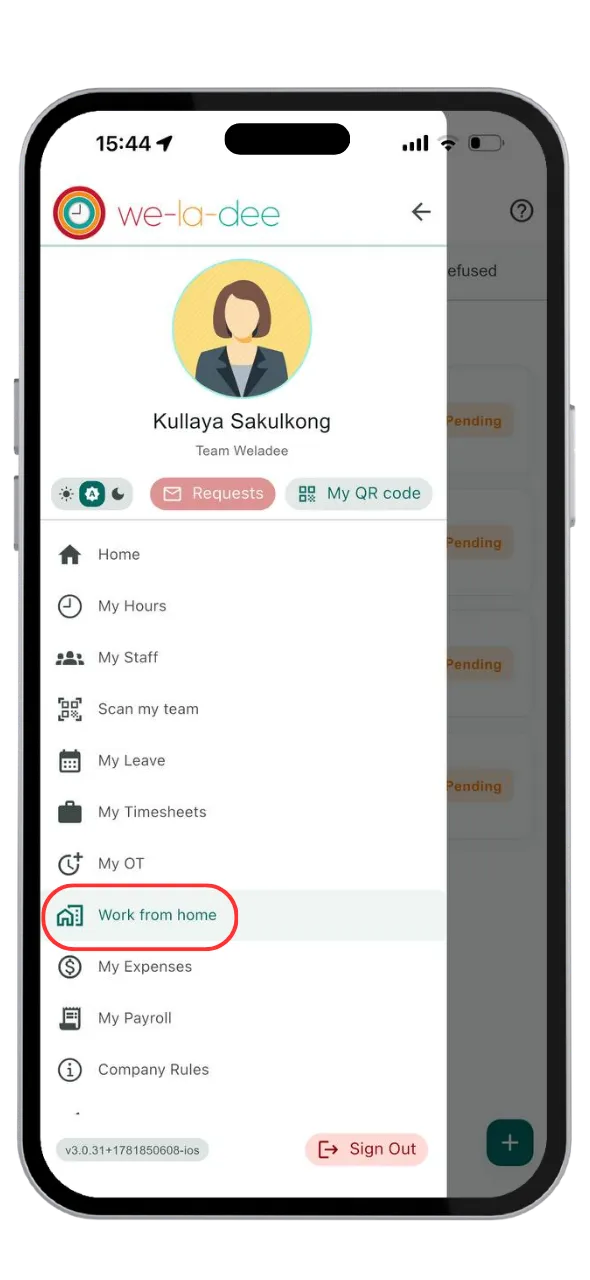
Message the Weladee Bot
Simply type a message like 'Can I work from home tomorrow?' directly to the Weladee Bot on Line or Telegram — no forms required.
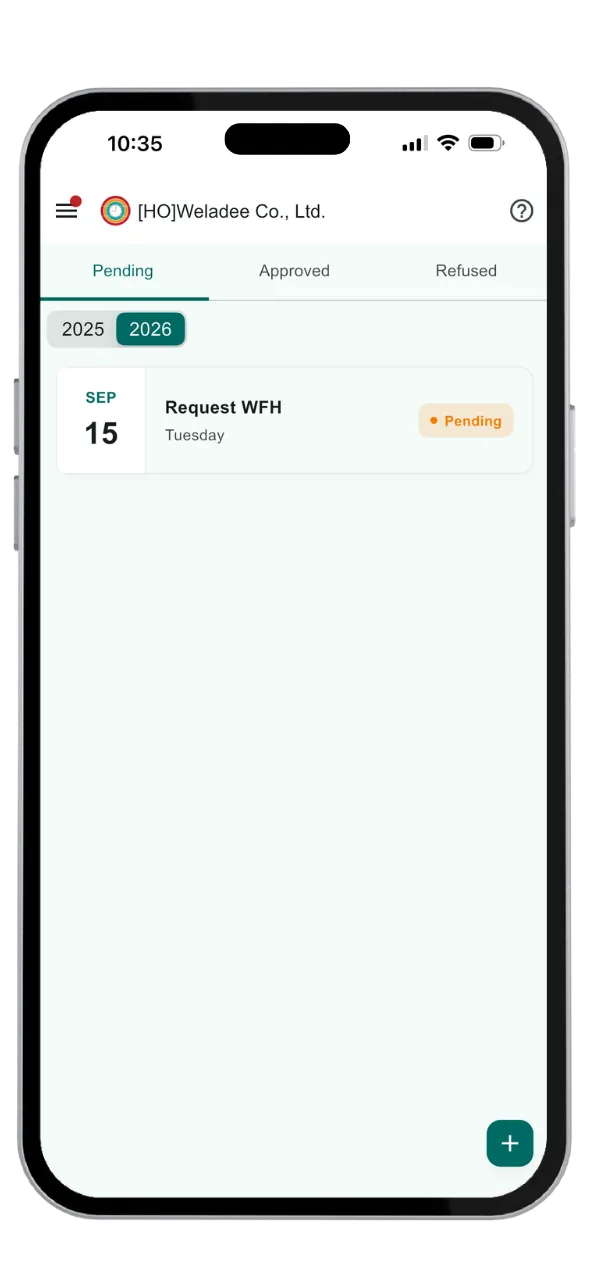
Specify a Date (Optional)
Need a specific day? Just tell the bot the exact date, e.g. 'Can I work from home on 25/12/2026?' and it will create the request automatically.
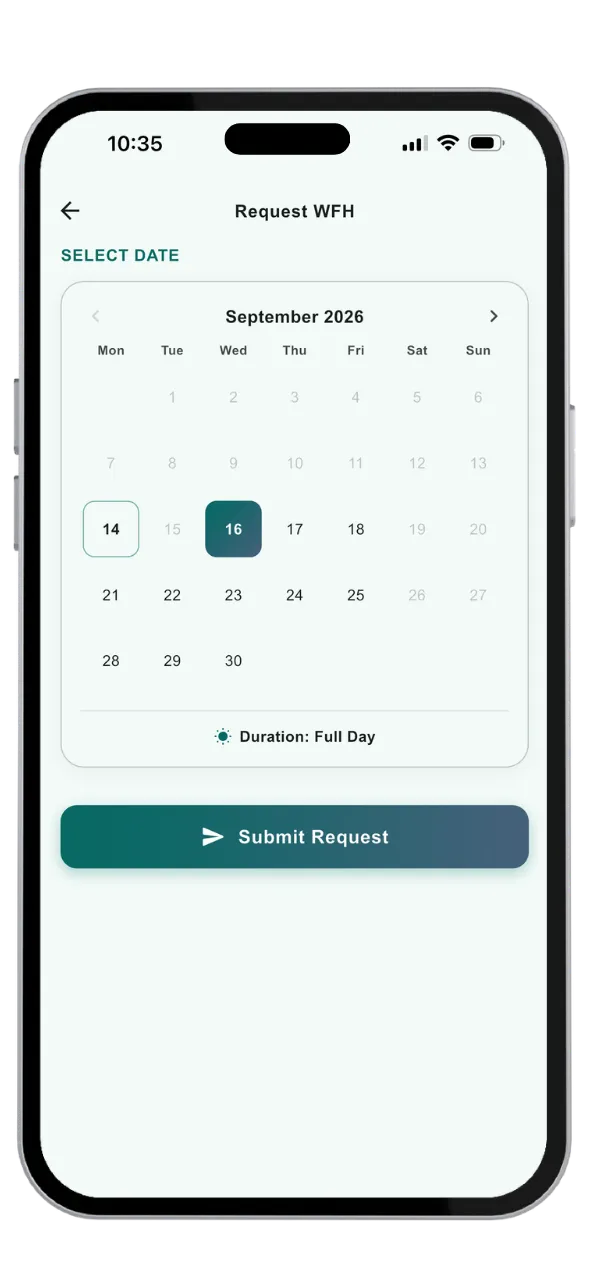
Request Sent for Approval
Your WFH request is instantly routed to your manager or HR administrator for review — no waiting on emails or paperwork.
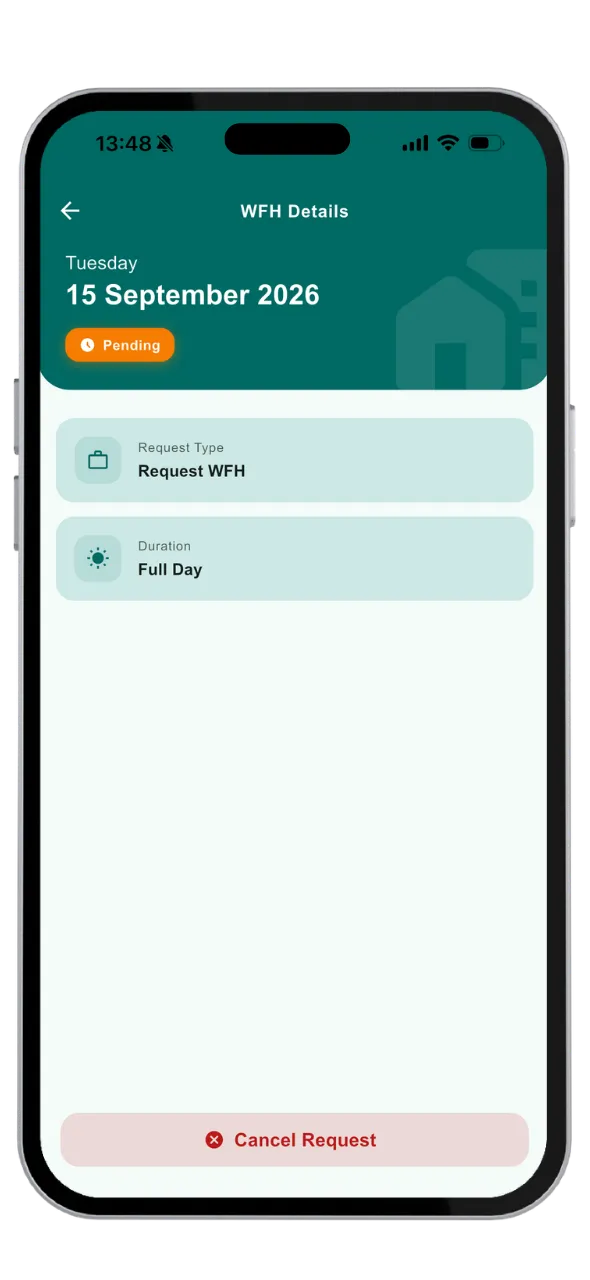
Clock In From Home
Once approved, simply clock in using GPS location and a selfie check-in from the mobile app to confirm you're working remotely.
How to Approve WFH
Managers and HR can plan hybrid schedules and approve WFH requests in just a few clicks
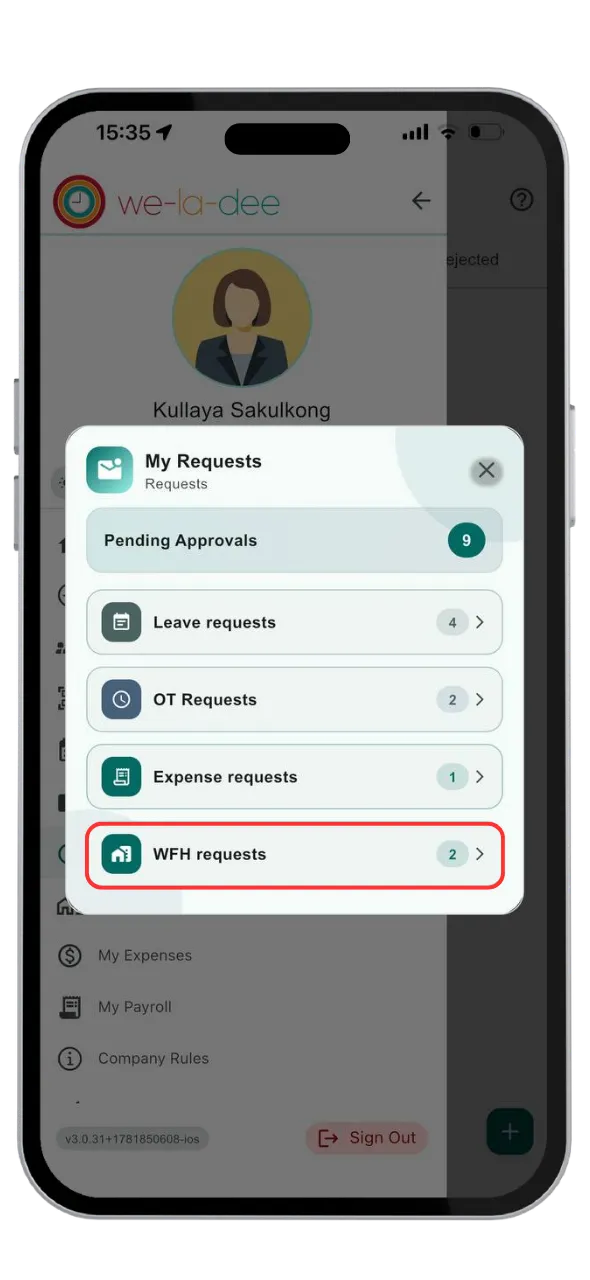
Review Incoming Requests
All WFH requests submitted by employees appear in one dashboard, so managers can review them at a glance.
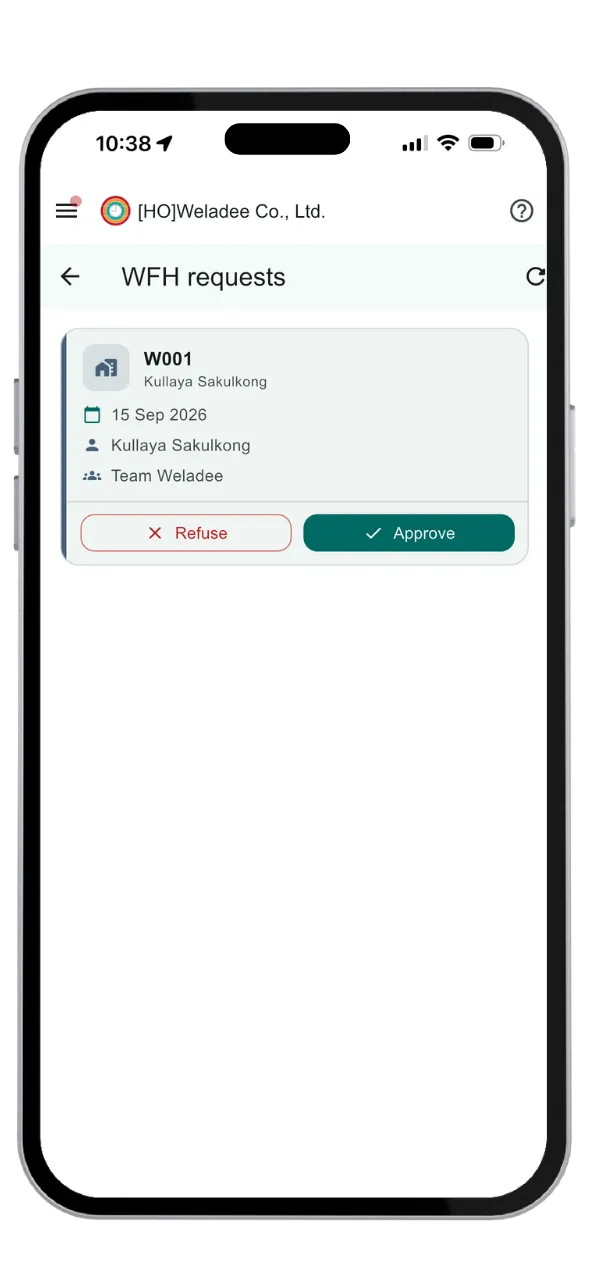
Schedule with Drag & Drop
Assign remote work days directly by dragging an employee's profile onto the calendar — perfect for planning hybrid schedules in advance.
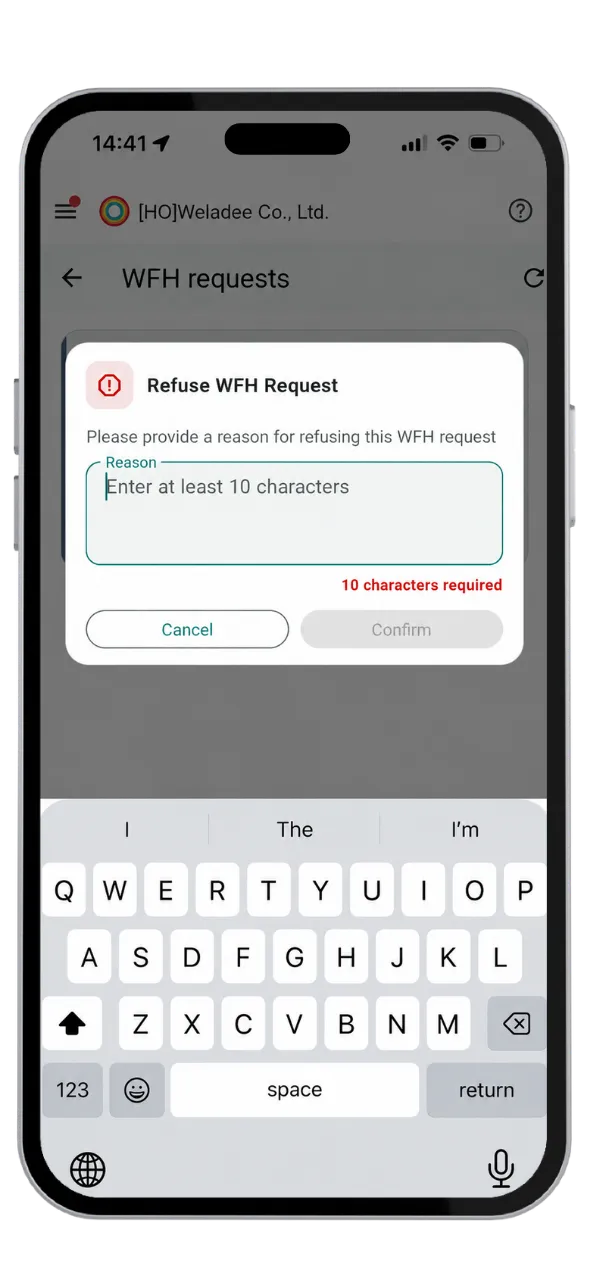
Approve or Decline
Approve or reject requests with one tap. Employees are notified instantly, so everyone stays on the same page.