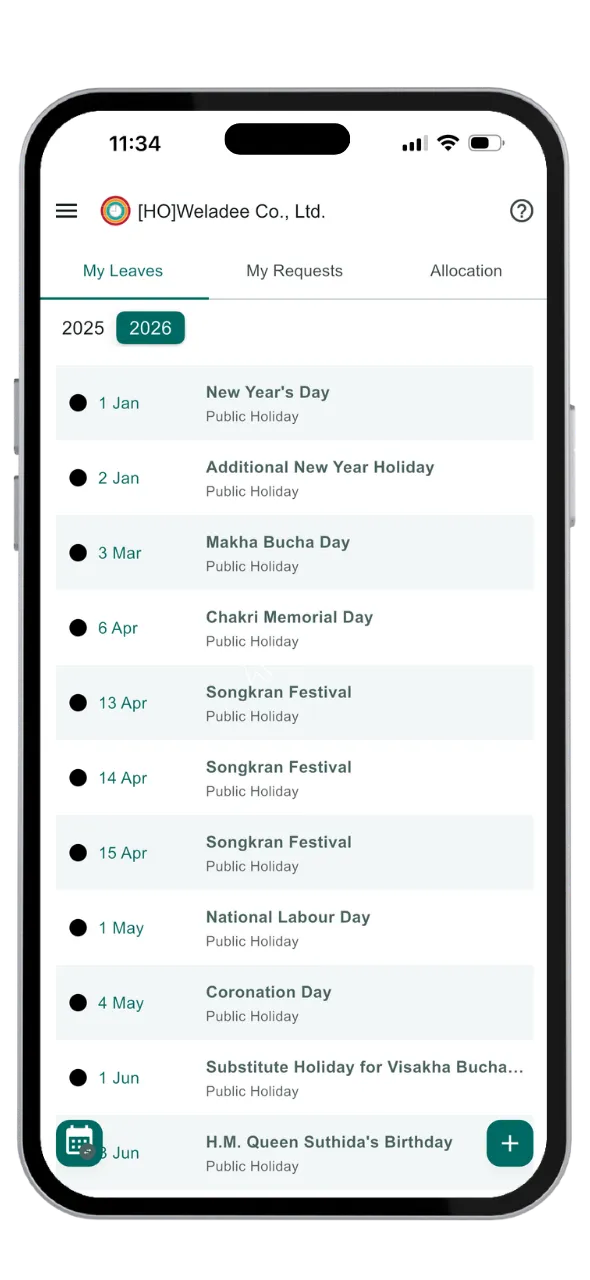
1. Tap the + button to create a new leave request.
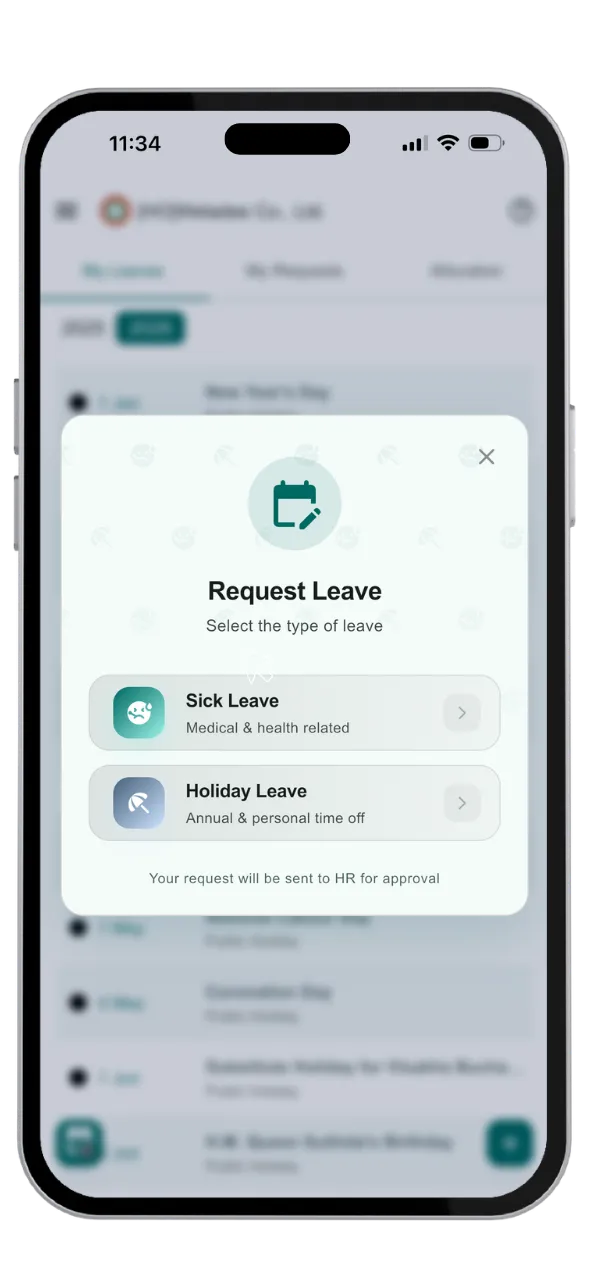
2. Choose the type of leave (e.g., Annual, Personal, or Sick Leave).
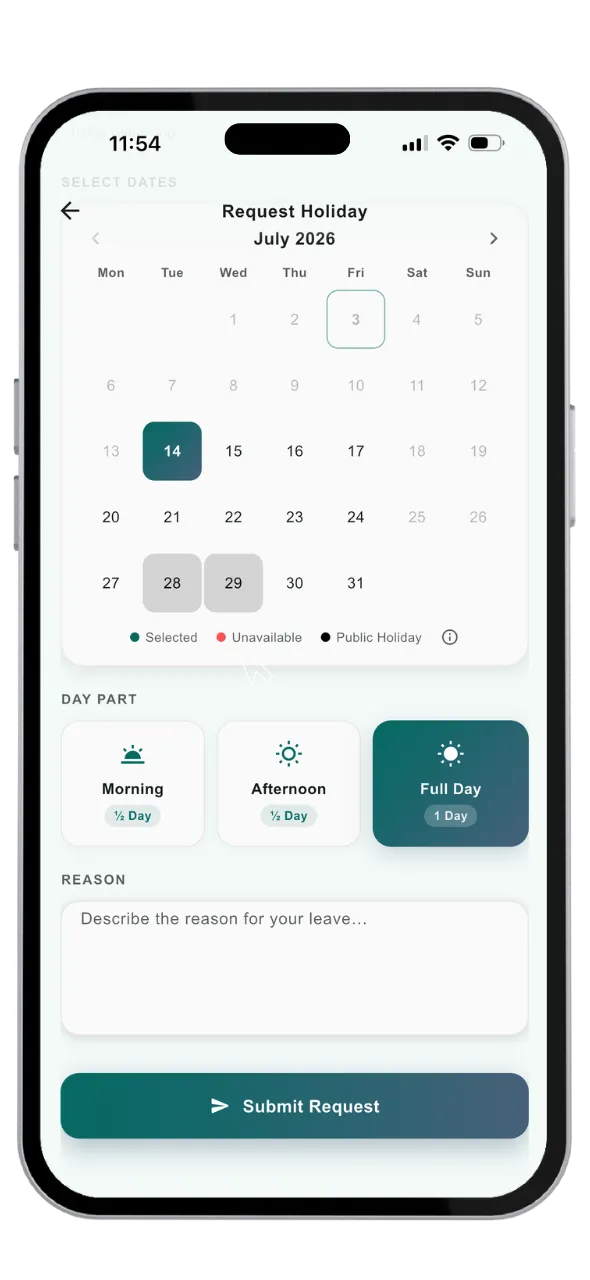
3. Select the date, specify full or half-day duration, and enter the reason for leave.
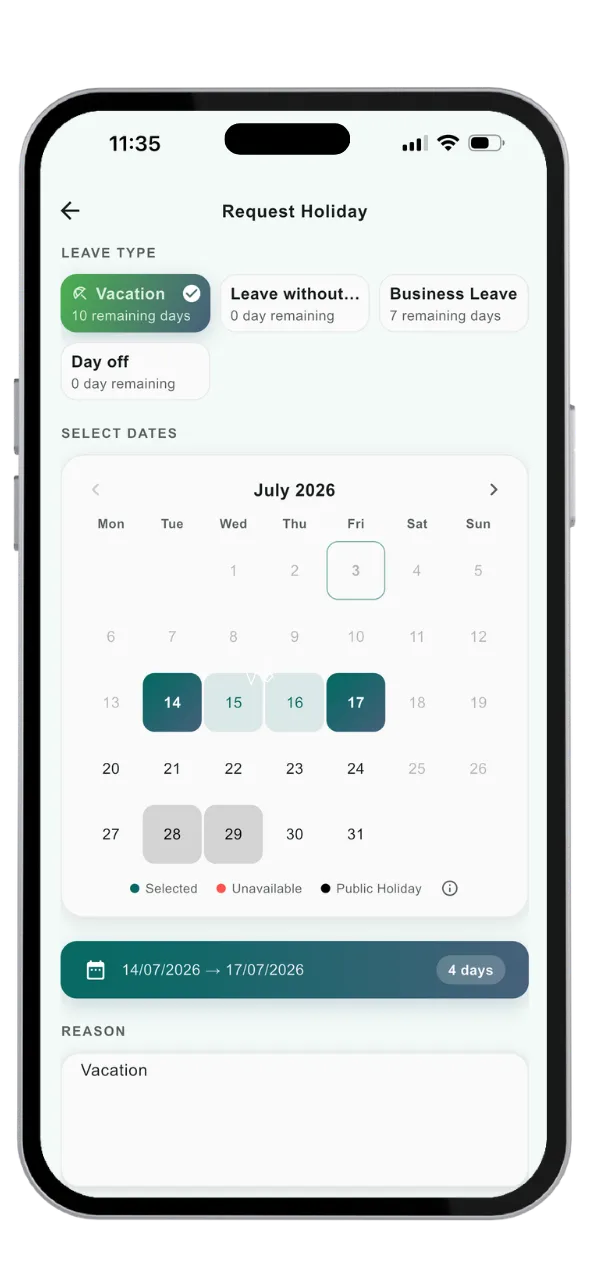
4. Submit multi-day leave requests easily by selecting a date range.
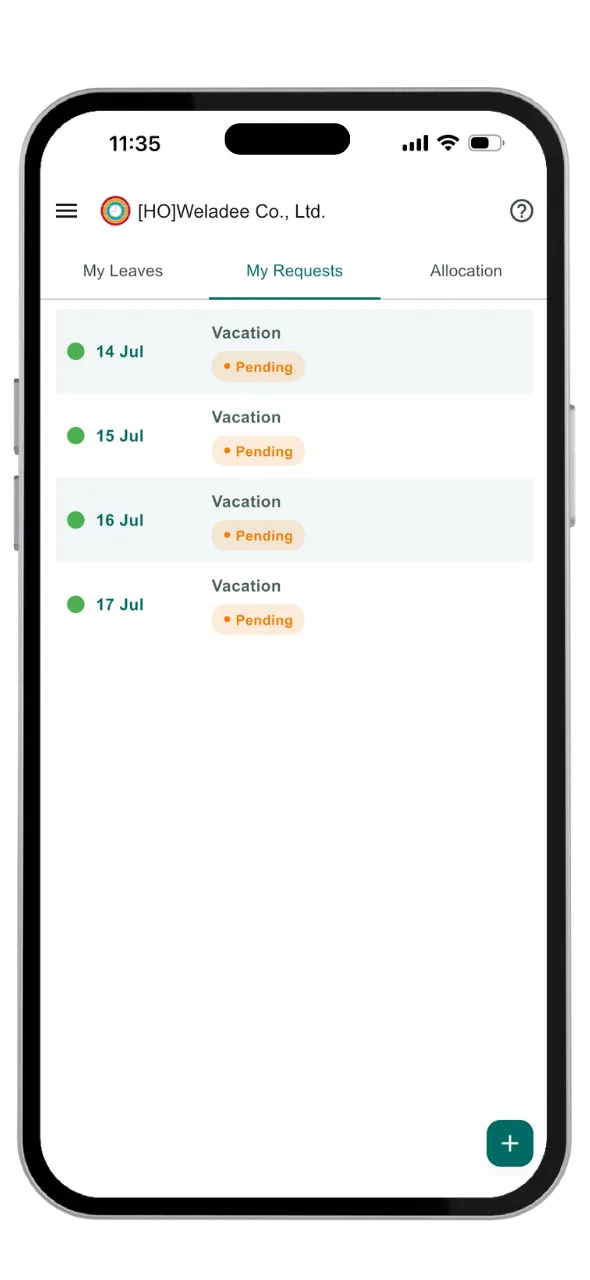
5. Track the status and progress of your leave requests anytime.
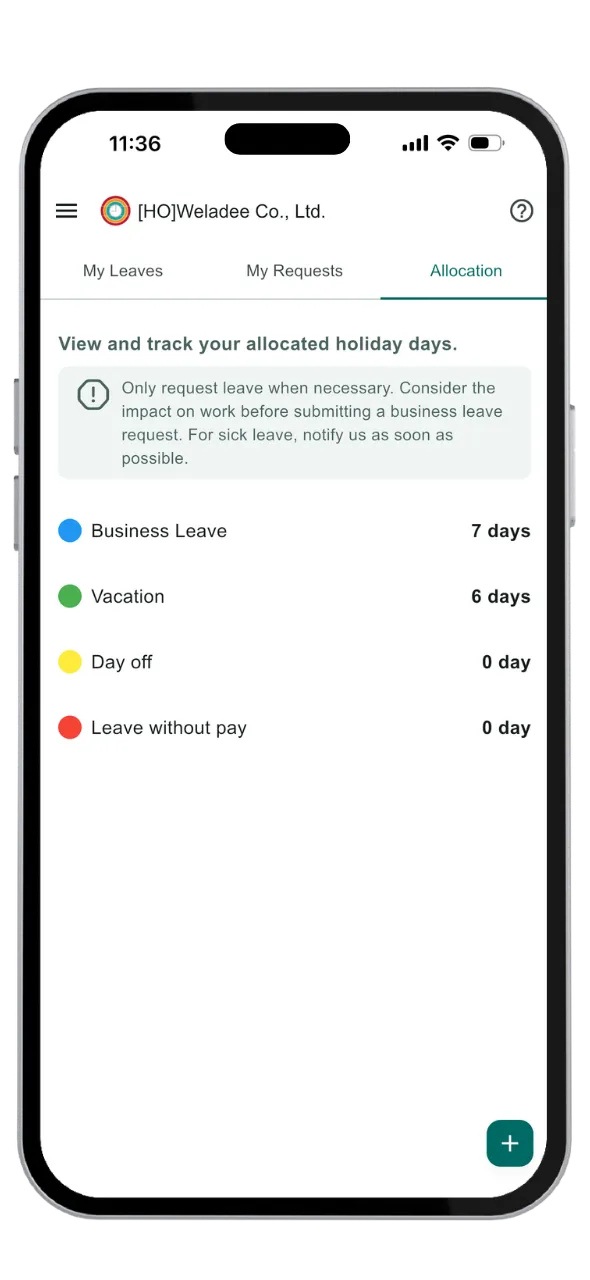
6. View and track your allocated leave days and remaining balances.
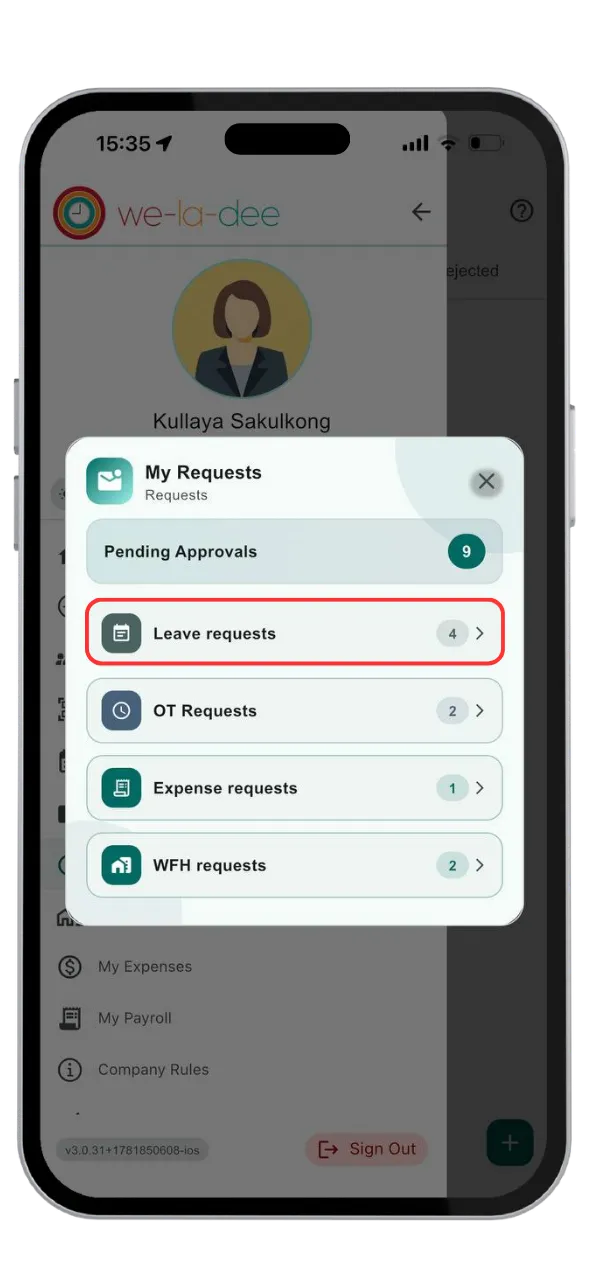
1. Managers receive instant notifications and can review all pending leave requests on mobile.
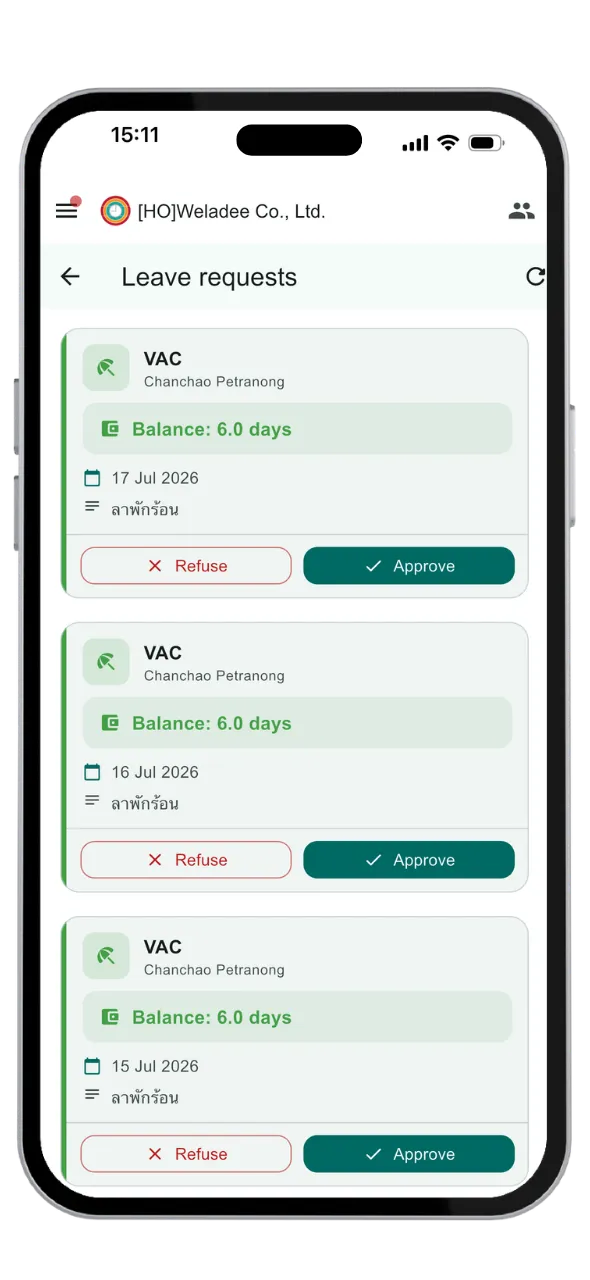
2. Tap Accept or Refuse to respond to the employee's request.
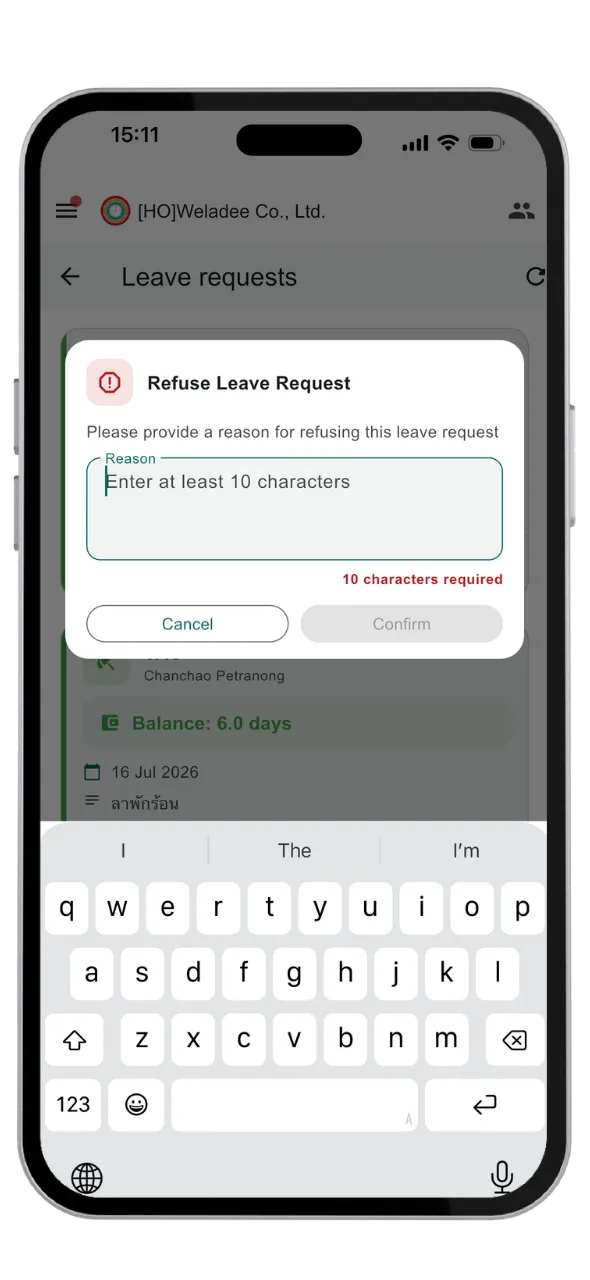
3. If refusing the request, enter a reason so the employee receives instant feedback.
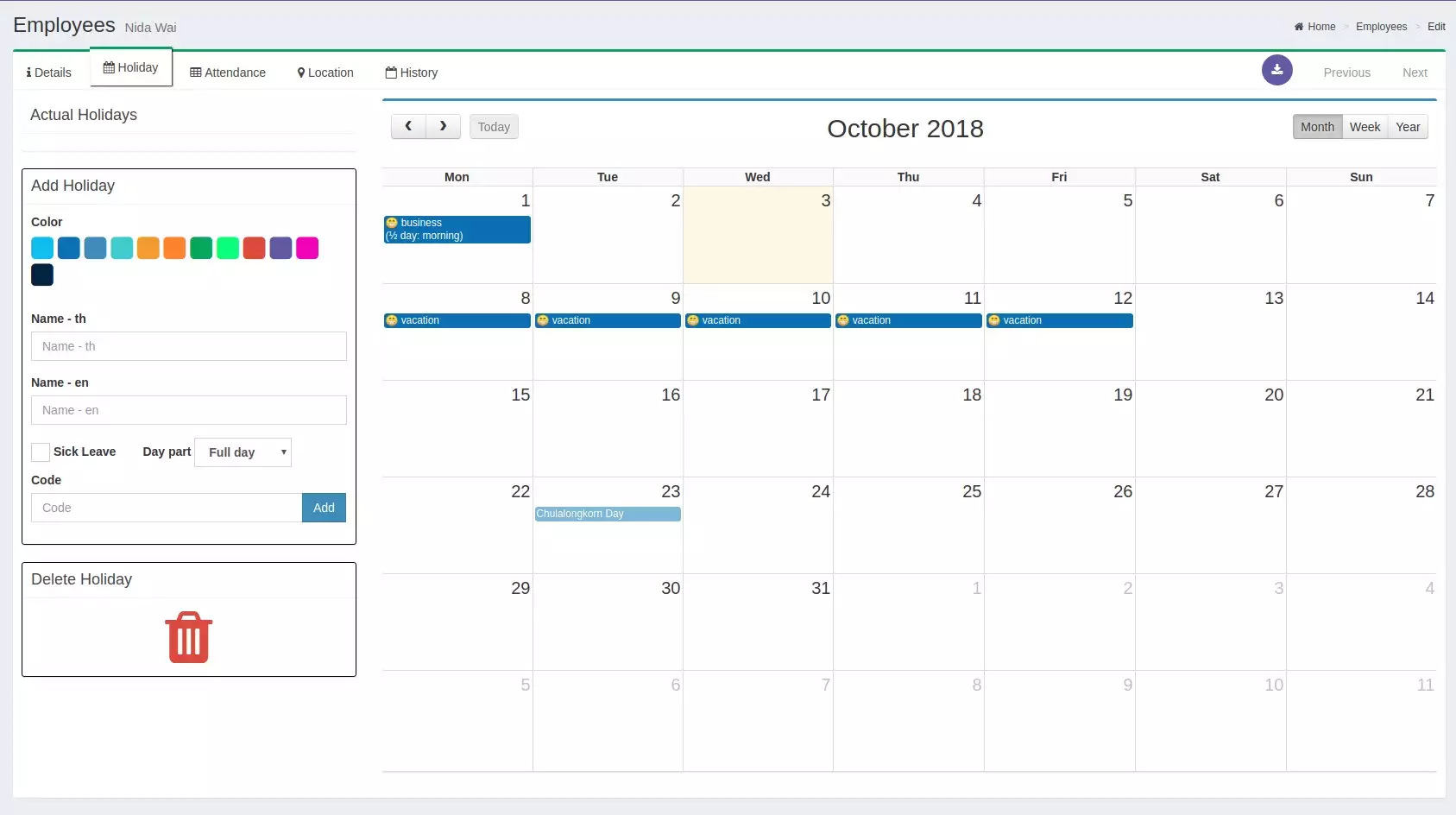
8. Approved leaves automatically sync to the Weladee dashboard, allowing HR to track time-off balances.
Sick Leave & Medical Certificate
Submit the request before the leave day, then attach the doctor's document later.
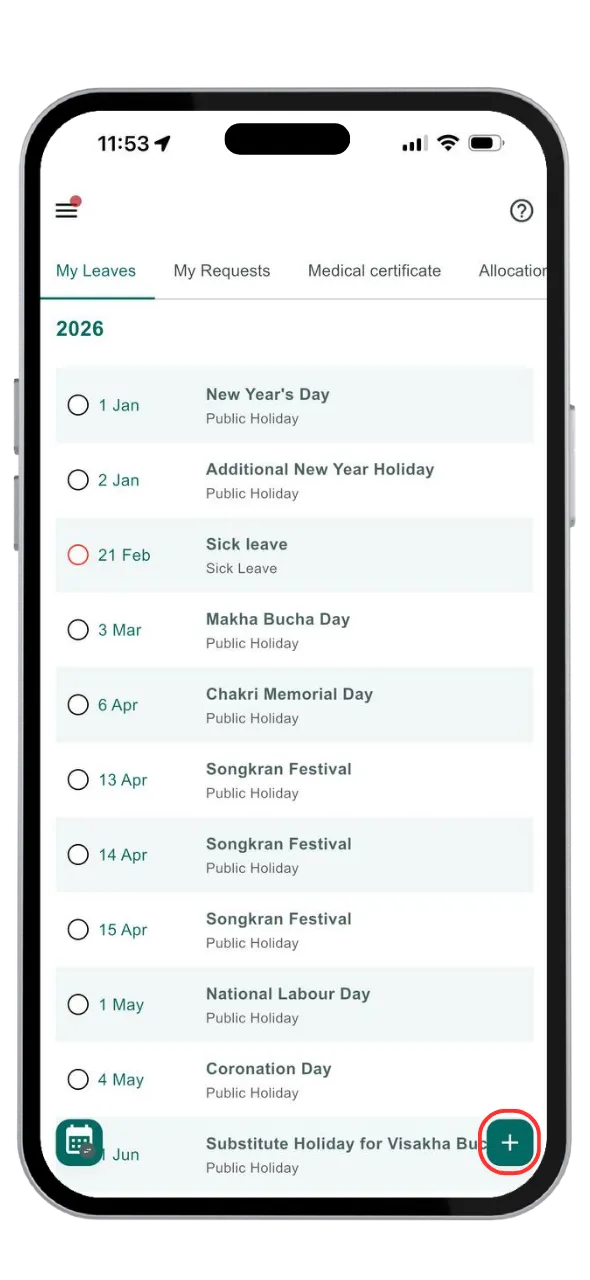
1. Tap + to create a leave request
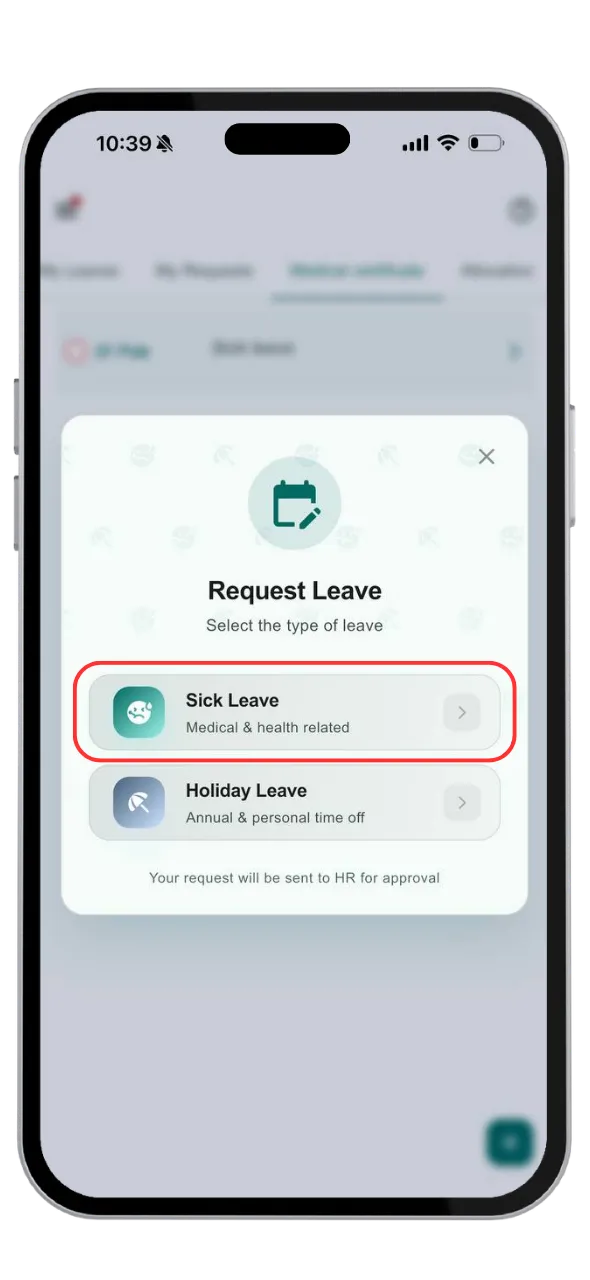
2. Choose the leave type "Sick Leave"
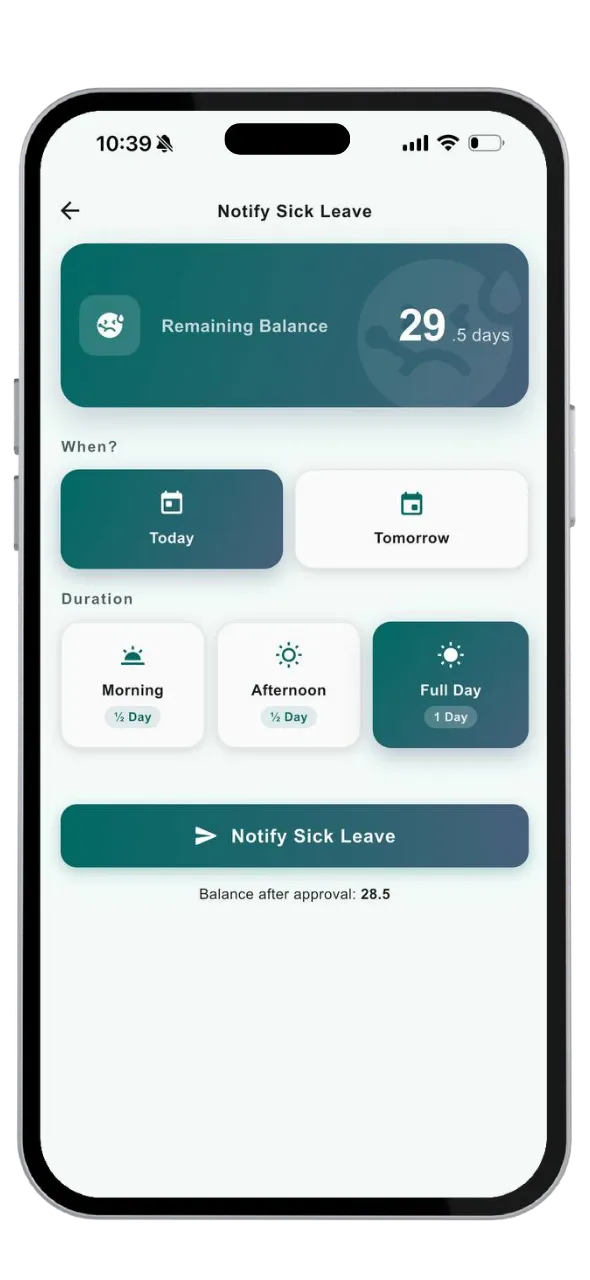
3. Select a leave date—either today or tomorrow—and the system will approve it immediately.
Request the sick leave first, then open the Weladee app to attach the document.
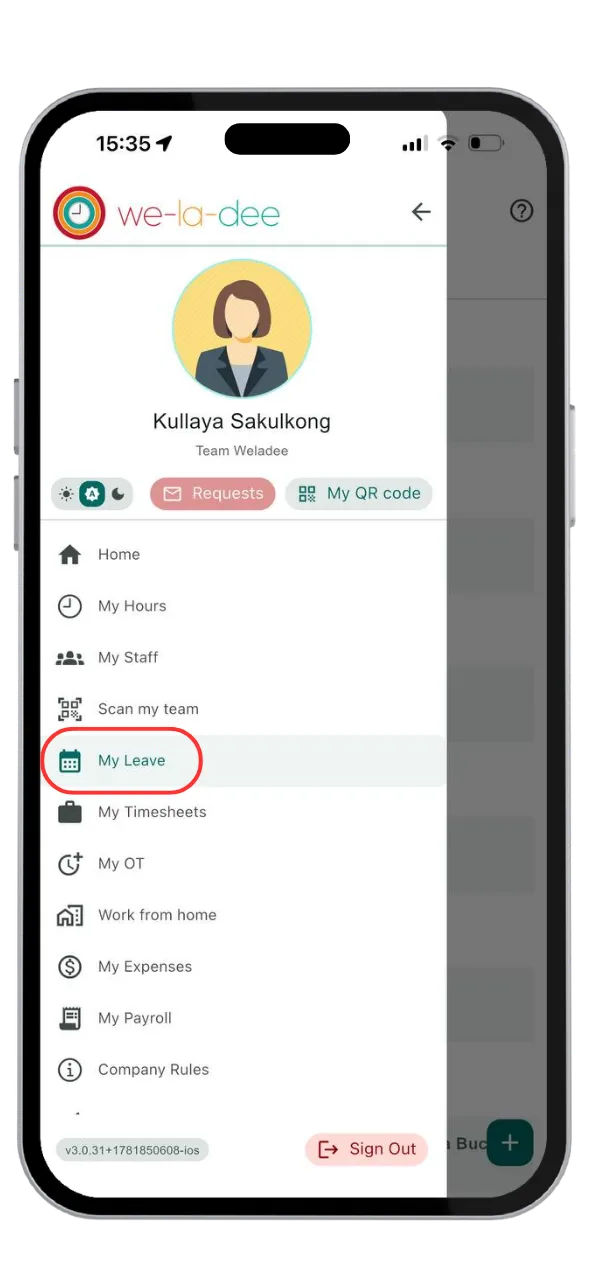
1. Go to the My Leave page
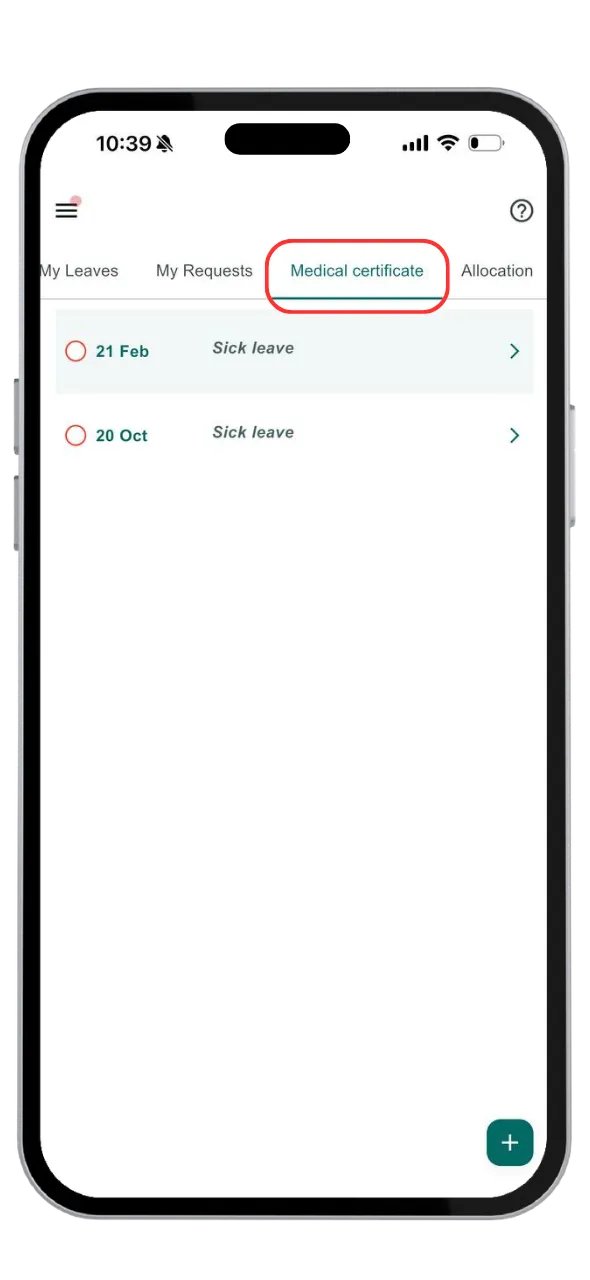
2. Open the Medical Certificate tab
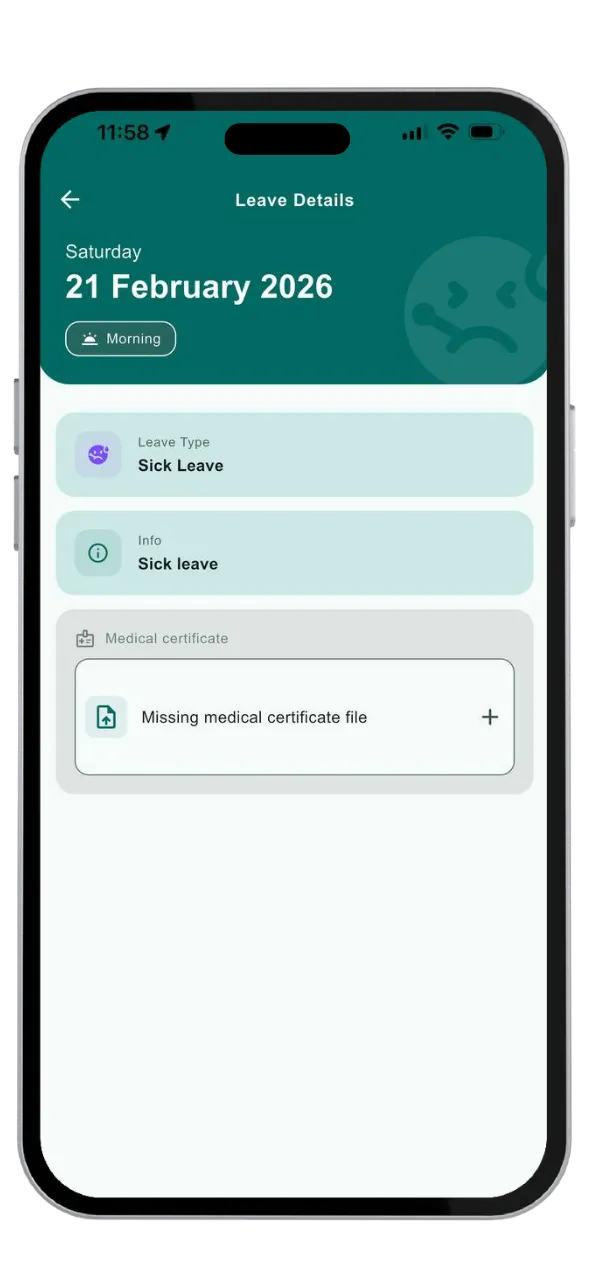
3. Tap to attach the file
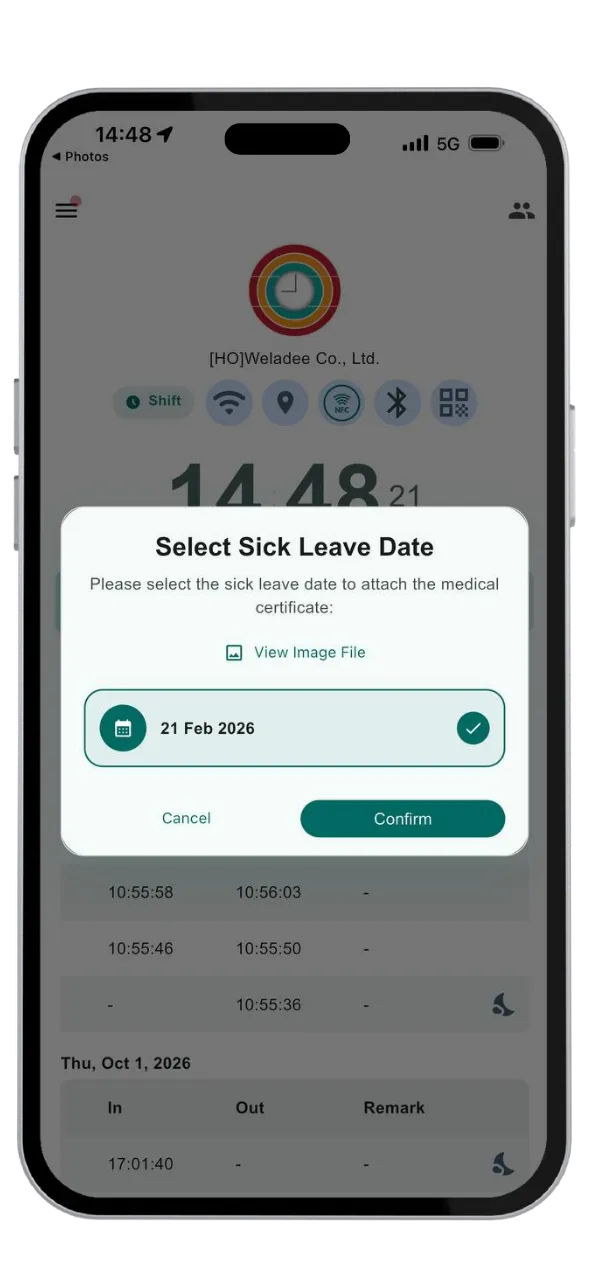
Request the sick leave first, then share the file straight from the app you already use. No need to open Weladee first.
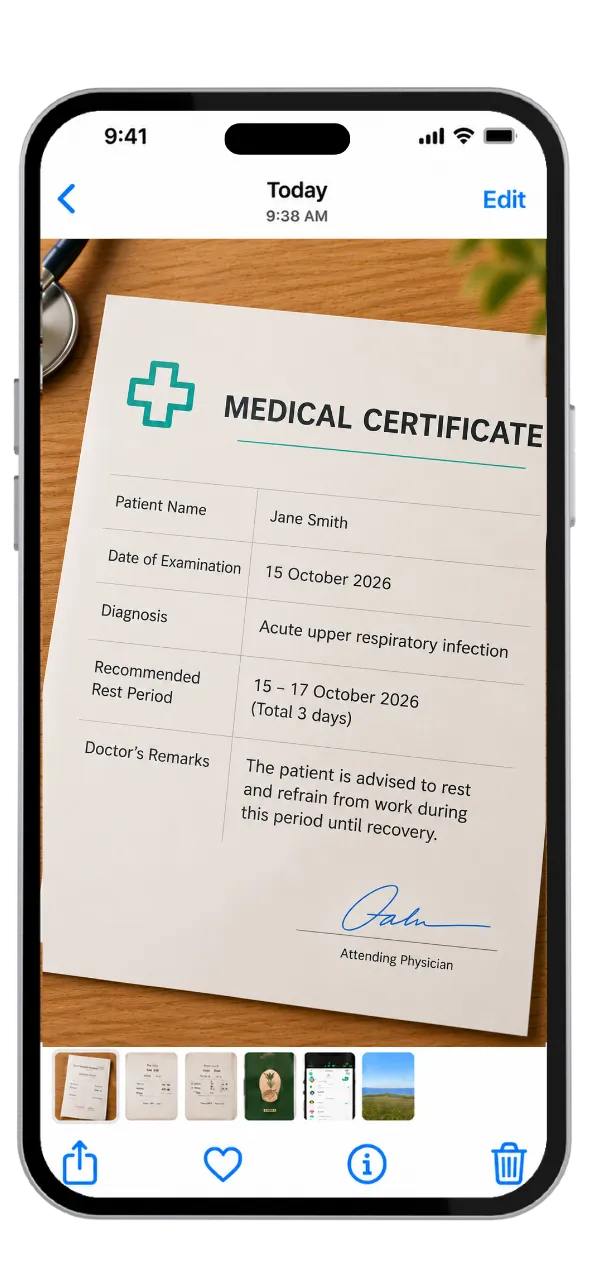
1. Choose the medical certificate image
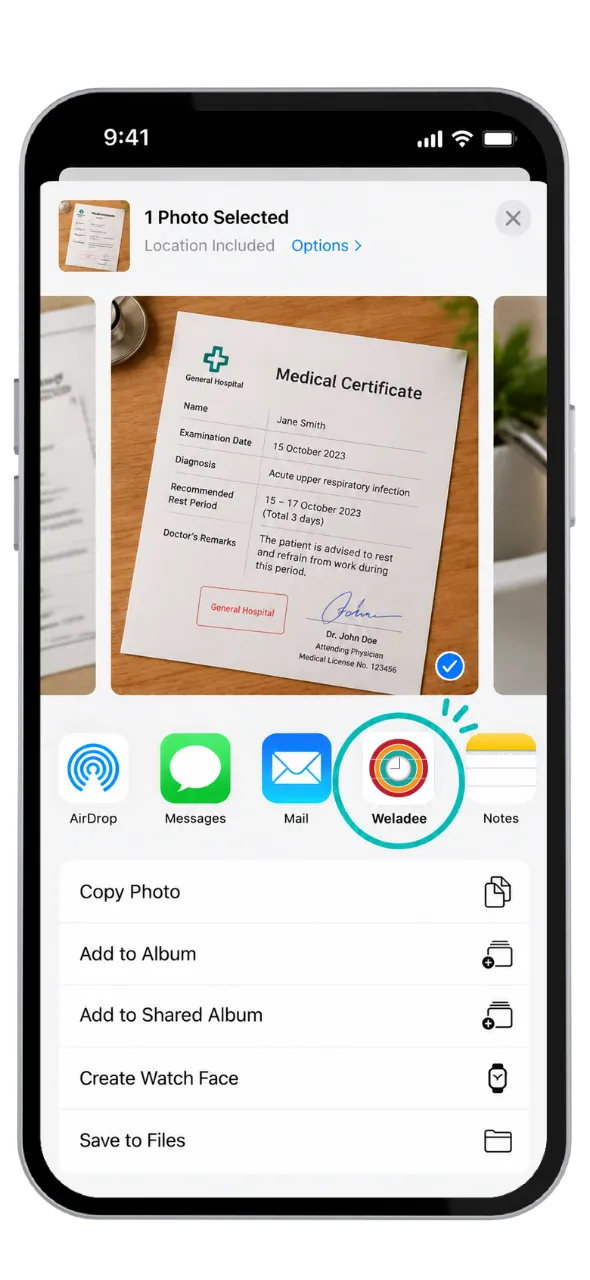
2. Tap Share, then choose Weladee
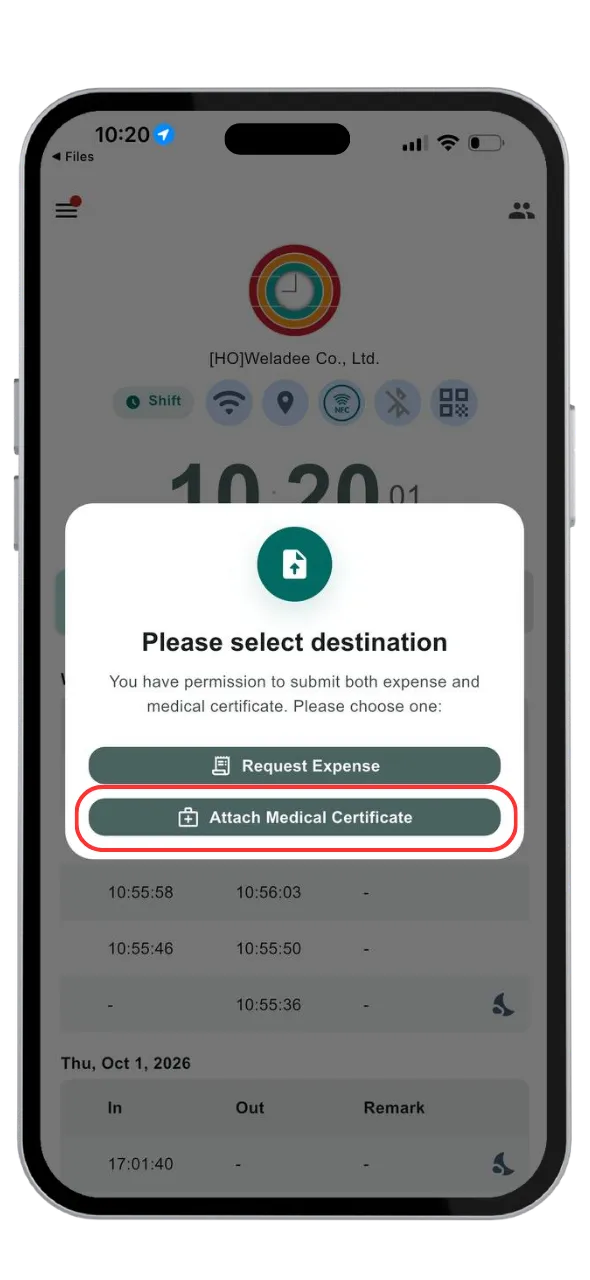
3. Choose the destination "Attach medical certificate"